
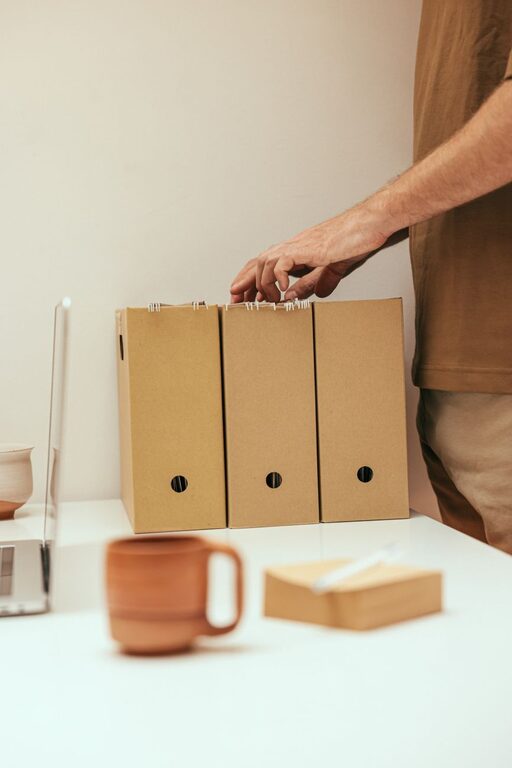
Organizing files on your computer can sometimes feel like a daunting task, especially if you’ve accumulated years’ worth of documents, photos, and downloads. Yet, a well-organized file system not only saves time but also reduces stress and increases productivity. Whether you’re a student, professional, or casual user, these tips will help you create a tidy and easy-to-navigate digital workspace.
Why Organizing Files Matters
When files are scattered across your desktop, downloads folder, or various drives, it becomes difficult to find what you need quickly. Disorganization can lead to duplicate files, lost documents, and wasted time searching through endless folders. By developing a system that fits your needs, you’ll enjoy smoother workflows and less frustration.
Getting Started: Assess Your Current Files
Before creating a new system, take a moment to review what you have:
– Scan your folders: Look through your Downloads, Documents, Desktop, and other common places.
– Identify duplicates: Use file management software or manually spot repeated files.
– Delete unneeded files: Remove outdated documents, installers, and large files you no longer require.
– Back up important files: To avoid accidental loss, ensure your essential files are backed up regularly.
Creating a Logical Folder Structure
1. Choose a Main Folder
Start by deciding on one or two main folders where most of your files will live. For example, “Work,” “Personal,” or “Projects.” This keeps everything grouped in a way that makes sense to you.
2. Use Subfolders Wisely
Break down your main folders into smaller, more specific categories. For example, under “Work,” you might create folders like:
– Reports
– Presentations
– Invoices
– Meeting Notes
Avoid creating too many nested folders (more than 3-4 levels deep) as it can become confusing.
3. Be Consistent with Naming
Use clear and consistent names for folders and files so you can easily search for and identify them. For example:
– Avoid vague names like “New Folder” or “Misc.”
– Include dates in file names when appropriate, using a consistent format such as YYYY-MM-DD.
– Use underscores or dashes instead of spaces to avoid issues with some programs.
Naming Files for Easy Retrieval
Your file names should tell you what the file contains without needing to open it. Consider these tips:
– Use descriptive titles, e.g., “Budget_Report_2024_Q1.”
– Avoid special characters (like /, \, :, *, ?, etc.) that can cause errors.
– Include version numbers if you frequently update files, e.g., “ProjectPlan_v2.”
Use Tags and Metadata (If Supported)
Many operating systems, especially macOS and some Windows versions, allow tagging files with colors or keywords. Tags can help you cross-reference files that belong to multiple categories without duplicating them.
Make the Most of Search Functions
Even with organized folders, sometimes it’s easier to search:
– Use your computer’s built-in search bar efficiently by typing keywords or file types (e.g., “.pdf”).
– Learn keyboard shortcuts for searching to speed things up.
– Consider third-party tools like Everything (Windows) or Spotlight (Mac) that enhance search capabilities.
Automate File Organization
If managing files manually feels overwhelming, you can automate some tasks:
– Set rules in your email or download folder so specific file types move automatically into the right folders.
– Use automation tools like Microsoft Power Automate, Apple Automator, or third-party apps like Hazel to sort files based on criteria.
Regular Maintenance: Keep It Up
Organizing files is not a one-time task. Set aside regular intervals to:
– Review new files and place them correctly.
– Delete old or duplicate files.
– Back up everything valuable.
A monthly or quarterly schedule can help prevent clutter from building up again.
Backup Your Organized Files
No matter how well your files are organized, data loss can happen. Use reliable backup methods:
– External hard drives
– Cloud storage services like Google Drive, Dropbox, or OneDrive
– Automated backup tools that run in the background
Having a backup ensures your hard work won’t be lost due to hardware failure or accidental deletion.
Tips for Specific File Types
Photos and Videos
– Organize by event, date, or subject.
– Use photo management tools like Google Photos or Apple Photos for tagging and facial recognition.
Documents
– Separate work and personal documents.
– Group by project or purpose for quicker access.
Downloads
– Regularly clear out your Downloads folder.
– Use filters or automatic rules to move files promptly.
Conclusion
An organized computer can make your digital life much easier. By taking a little time to set up a logical folder structure, naming files sensibly, using search and tagging tools, and maintaining your system regularly, you’ll spend less time hunting for files and more time being productive. Start small and build habits that encourage order — your future self will thank you!